top_banner_ttneorispro0426
Type foundry Blog How do you add a font to your computer? 

How do you add a font to your computer? 

How do you add a font to your computer? 

How to install a new font on a PC? Users and designers face this question very often. Rest assured, there is nothing tricky in this process!

This article provides a step-by-step guide to help you understand how to install downloaded fonts correctly on Windows and iOS-powered computers.

How do you add a font to your computer? 

How to install a font file: Important details

Users often ask how to add new fonts to a program. However, font files are installed into the operational system rather than a separate, individual service. So, it’s enough to download a font file, and the installed font will appear in the necessary program, whether it’s Adobe Photoshop, Corel Draw, Figma, Microsoft Word, or any other.

Another crucial nuance is the font file’s format. Font files are most often distributed in the ttf (TrueType) or otf (OpenType) formats because they are the best-suited for MS (Microsoft) software. Fonts with any other extensions can be formatted using an online converter tool.

You can purchase and download commercial fonts on multi-brand platforms like MyFonts. There, you will find fonts made by various studios, including TypeType. Apart from that, in most cases, you can purchase fonts directly on the website of the studio that released it. To download free fonts on your computer, you can use special resources like Google Fonts. On our website, you can download different options from the free font collection and also trial versions of our commercial typefaces to test them in your project before purchasing.

Remember, to use fonts, you need a license—this applies to both commercial and free typefaces. To make your user experience positive, please read licensing agreements carefully. Learn more about font licensing in our article.
How to install fonts on Windows PC

The following method works for all versions of Windows, including Windows 10.

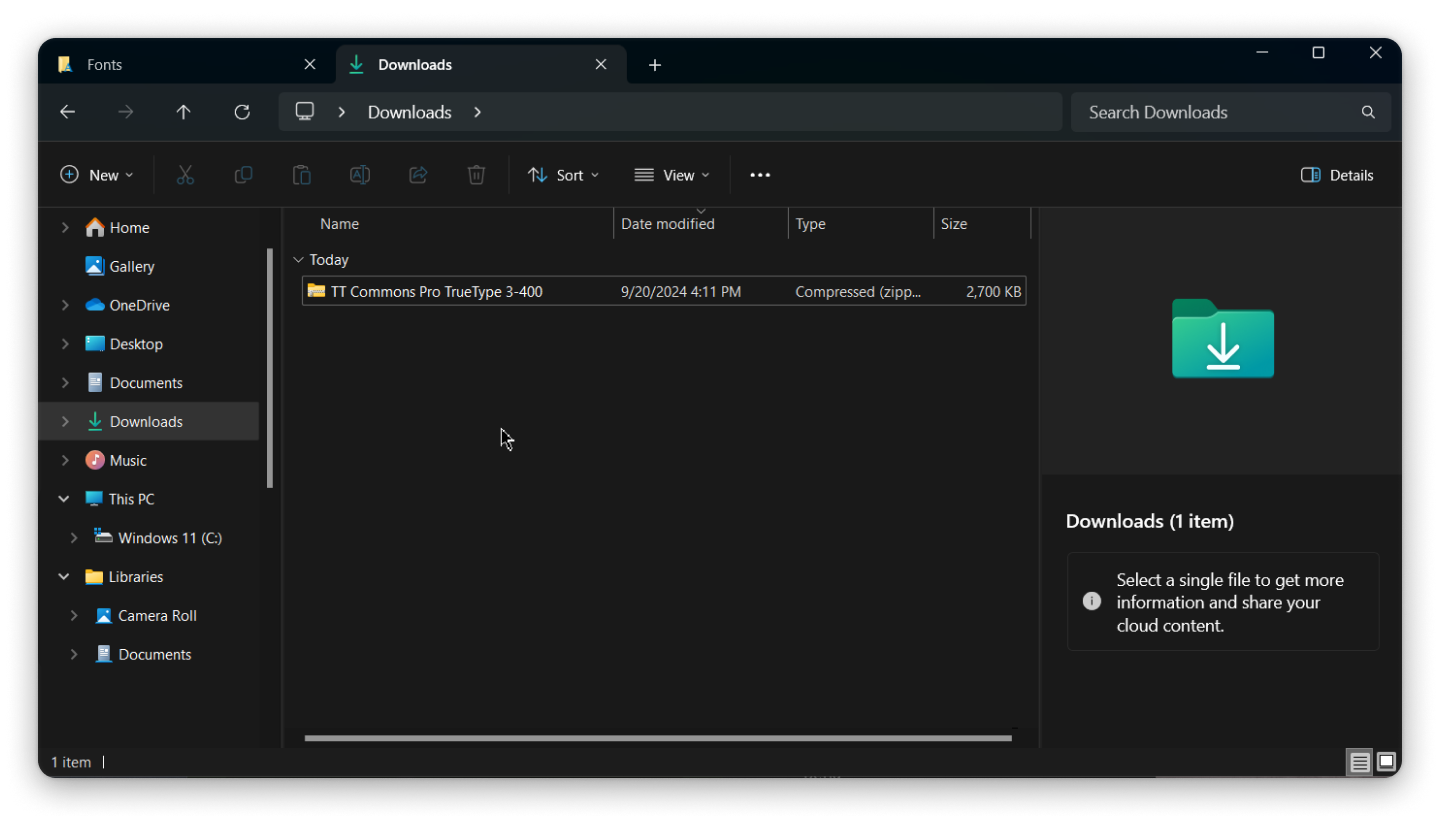
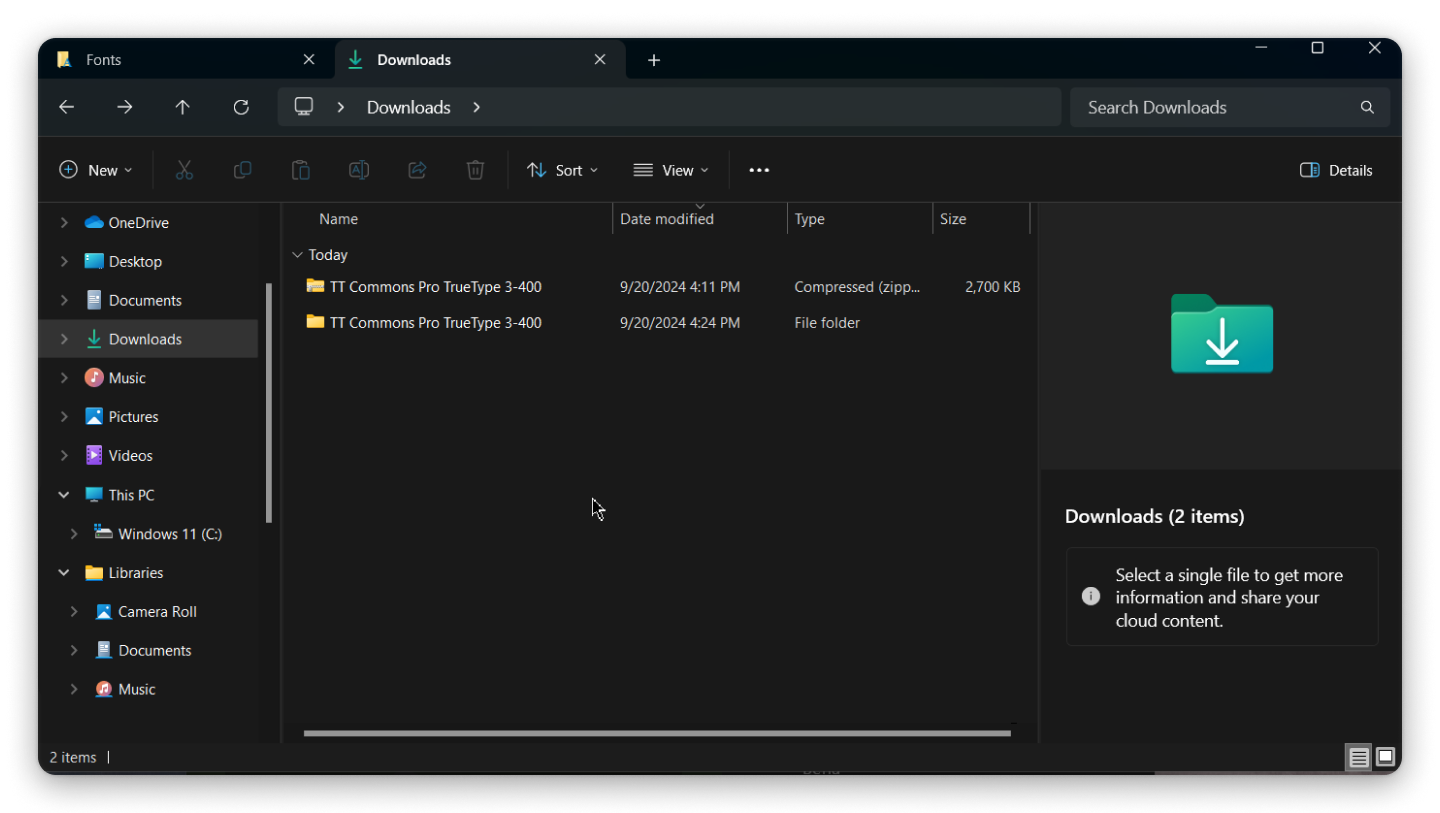
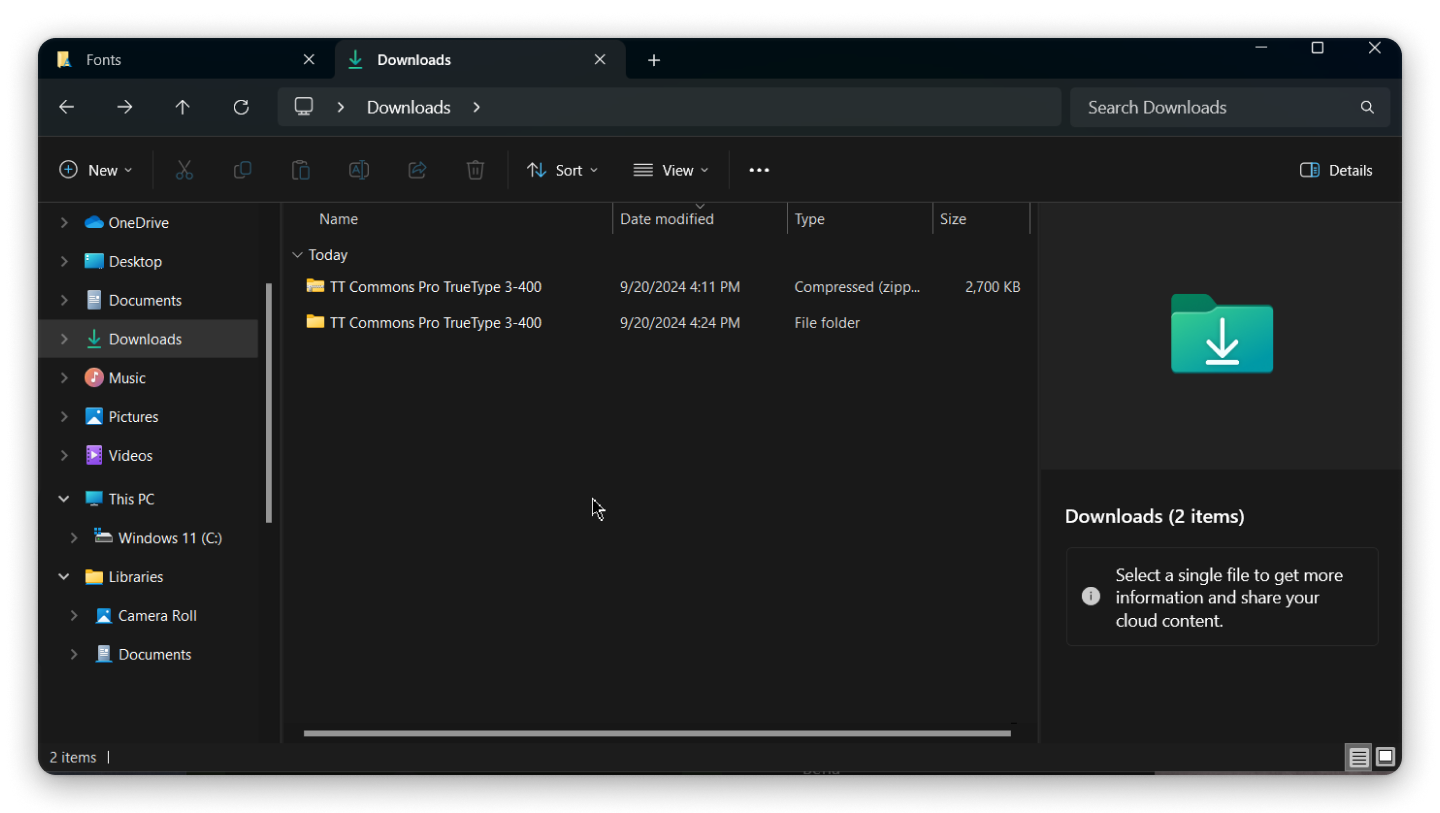
  1. Download the font from the chosen resource. The downloaded font is just a regular file. If you’re unsure where it was downloaded, you can easily find it in the «Downloads» folder. If the files are saved as a zip archive, you will have to unpack them before installing;
How to install fonts on Windows PC

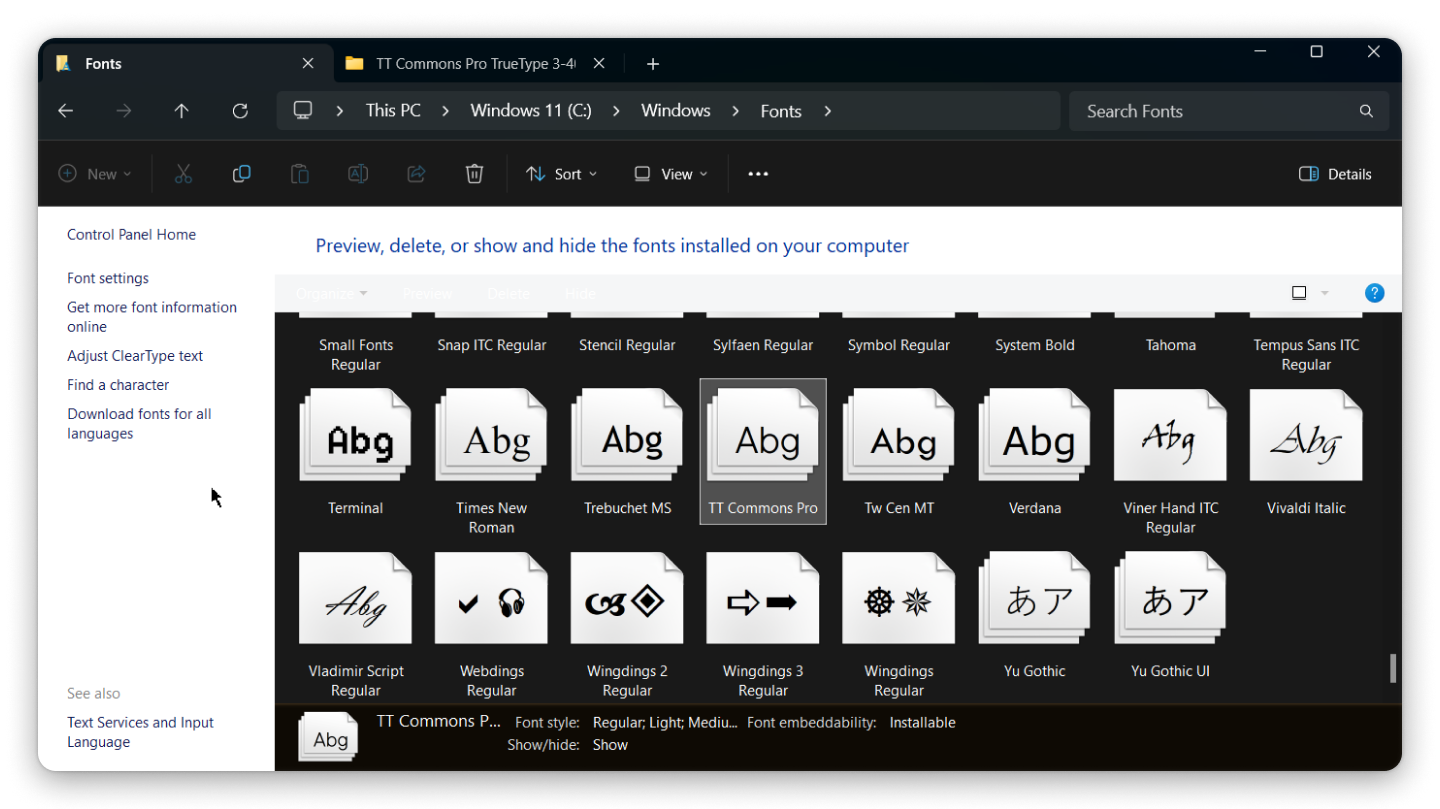
2. Move the font file into the C:\Windows\Fonts folder (or use copy-paste to do so). After moving the file, it will be automatically installed, and you will be able to use it in any program.
How to install fonts on Windows PC

There is another easy way to install fonts on Windows 10 computers.

  1. Download the font;
How to install fonts on Windows PC

2. If the font was saved as a zip archive, unpack the file;
How to install fonts on Windows PC

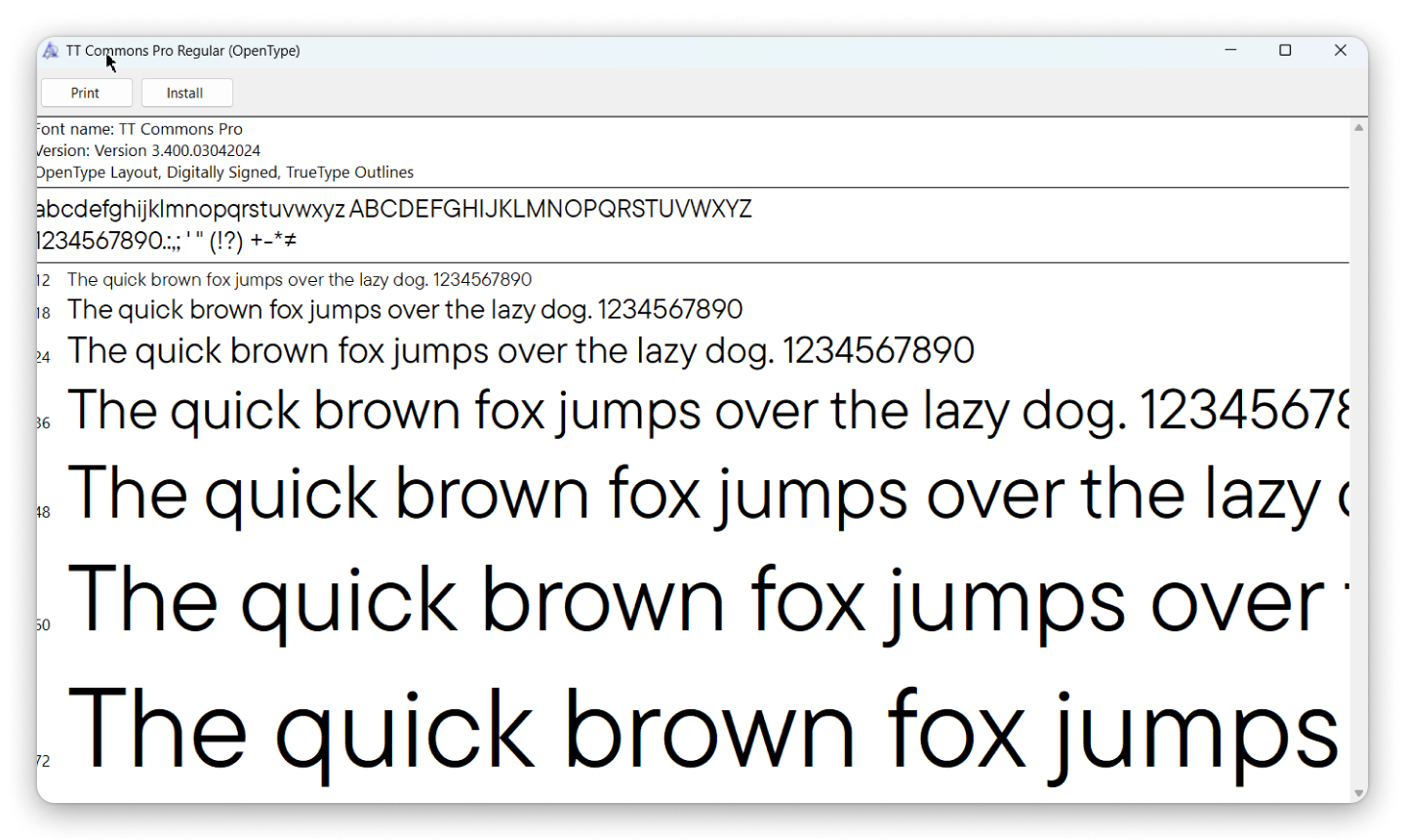
3. Open the file by double-clicking on its icon and click the «Install» button;
How to install fonts on Windows PC

4. After installation, the downloaded font will automatically become available in all programs. If you cannot see the new font, restart your computer.

As you can see, installing fonts on Windows is quite easy. Now, let’s find out how to add fonts on Mac.

How to install a font on an iOS PC

When downloading fonts from external sources (online), the procedure will be nearly identical to installing them on Windows.

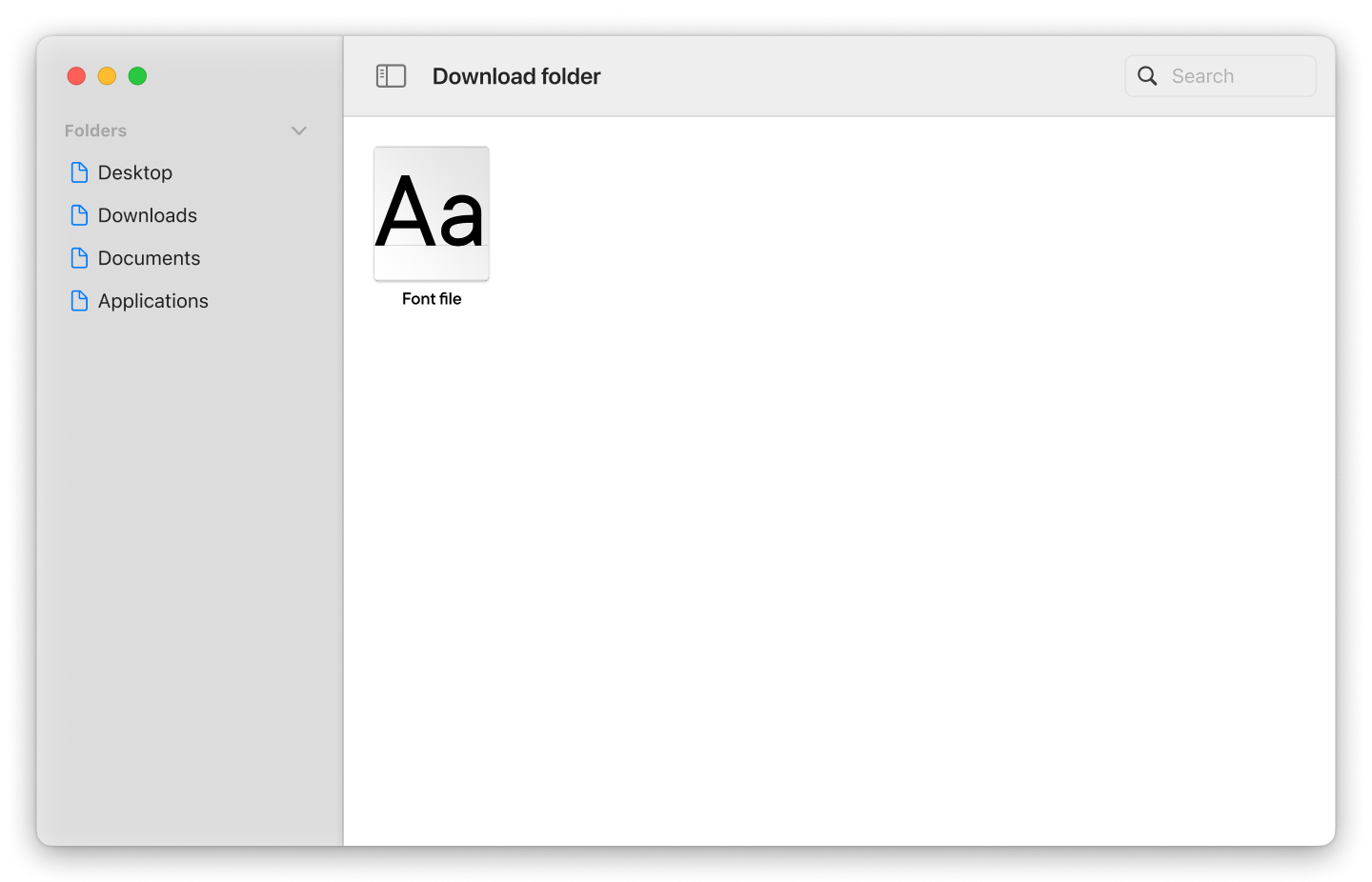
  1. Download the font file to your computer or laptop;
How to install a font on an iOS PC

2. If the files are archived, unpack them;
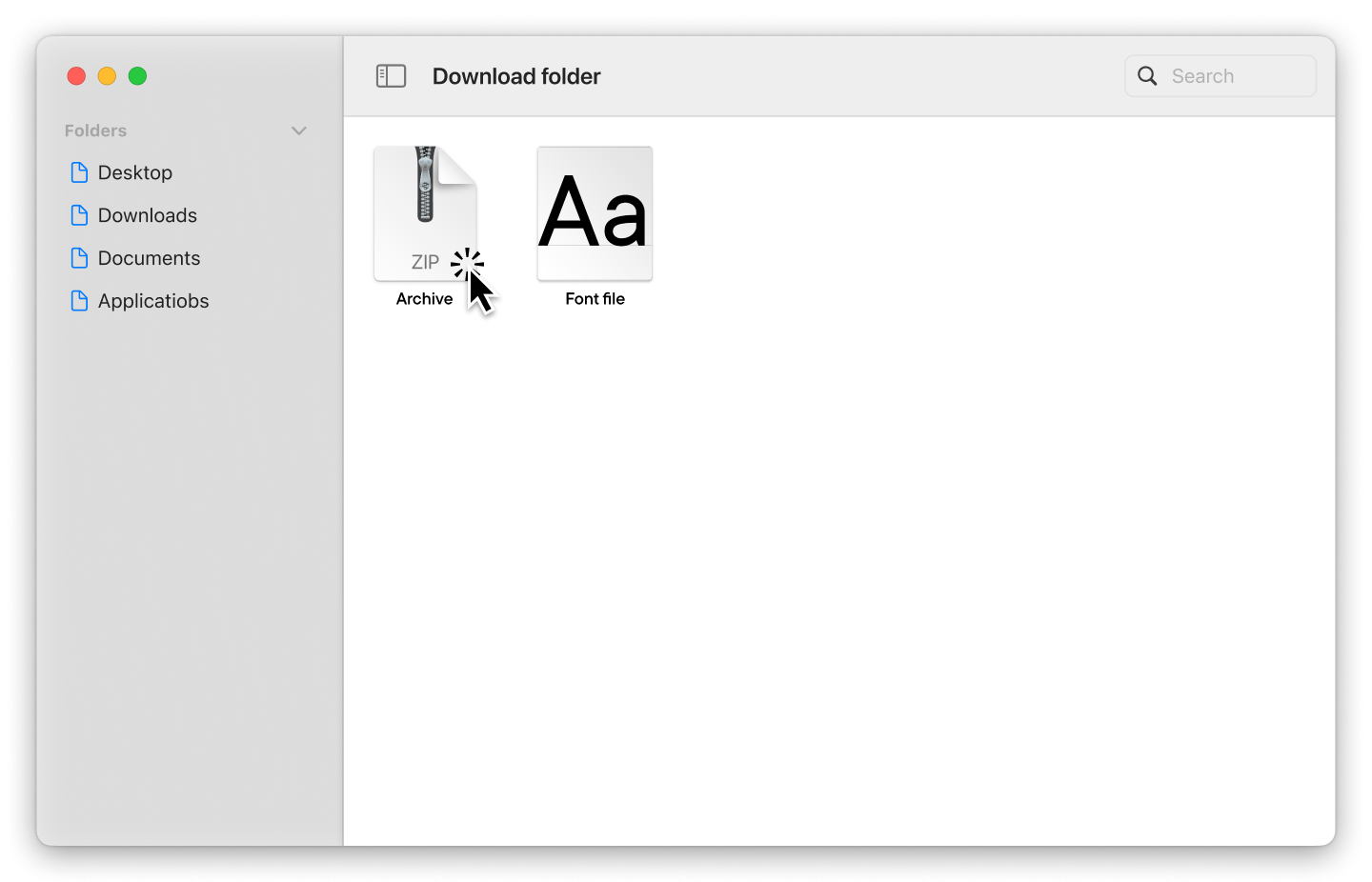
How to install a font on an iOS PC

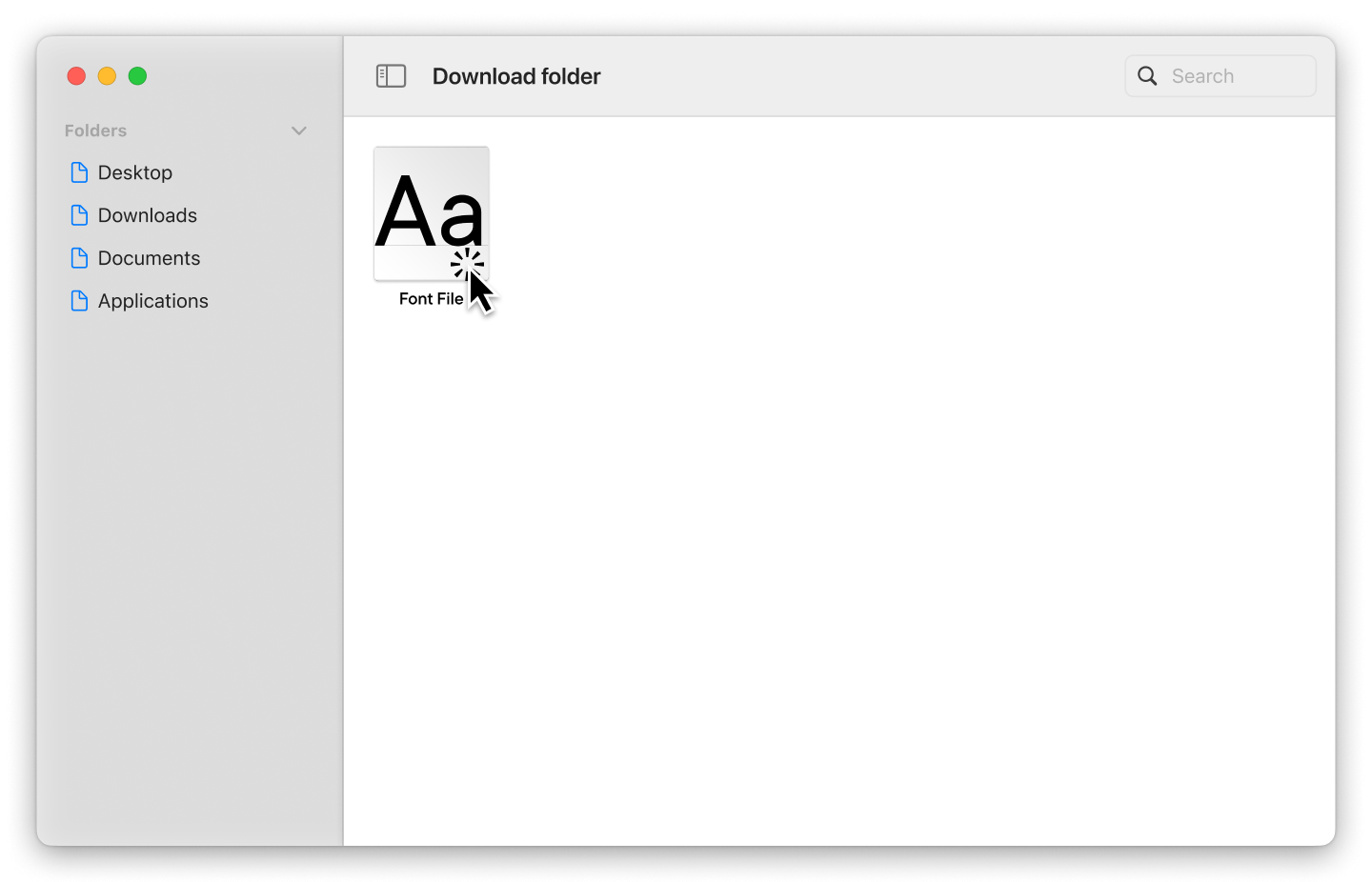
3. You will see the downloaded font file in «Finder.» Double-click it and select «Install.»
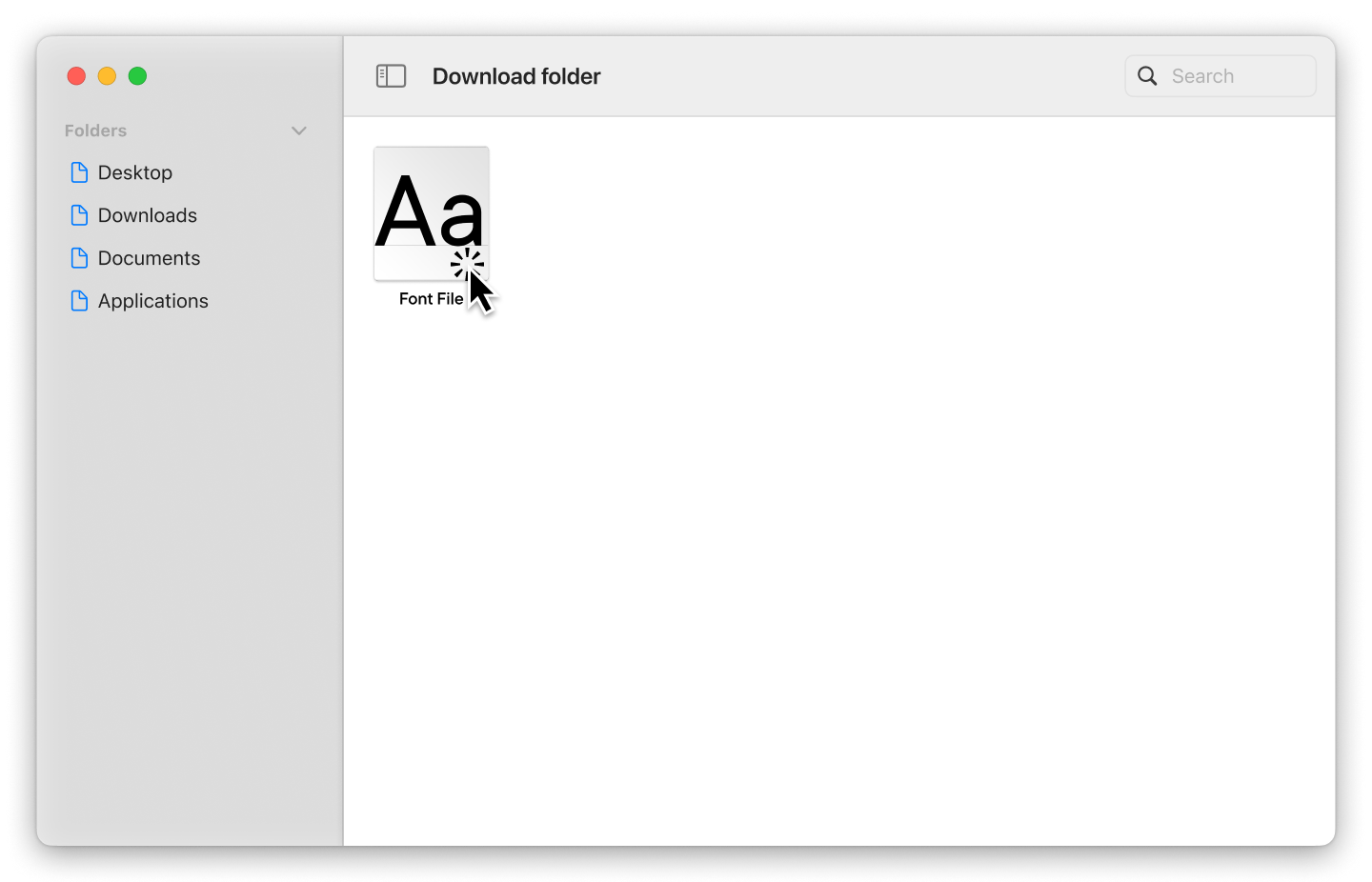
How to install a font on an iOS PC

After installation, the font will automatically become available in all programs. If you still don’t see it, restart your computer.

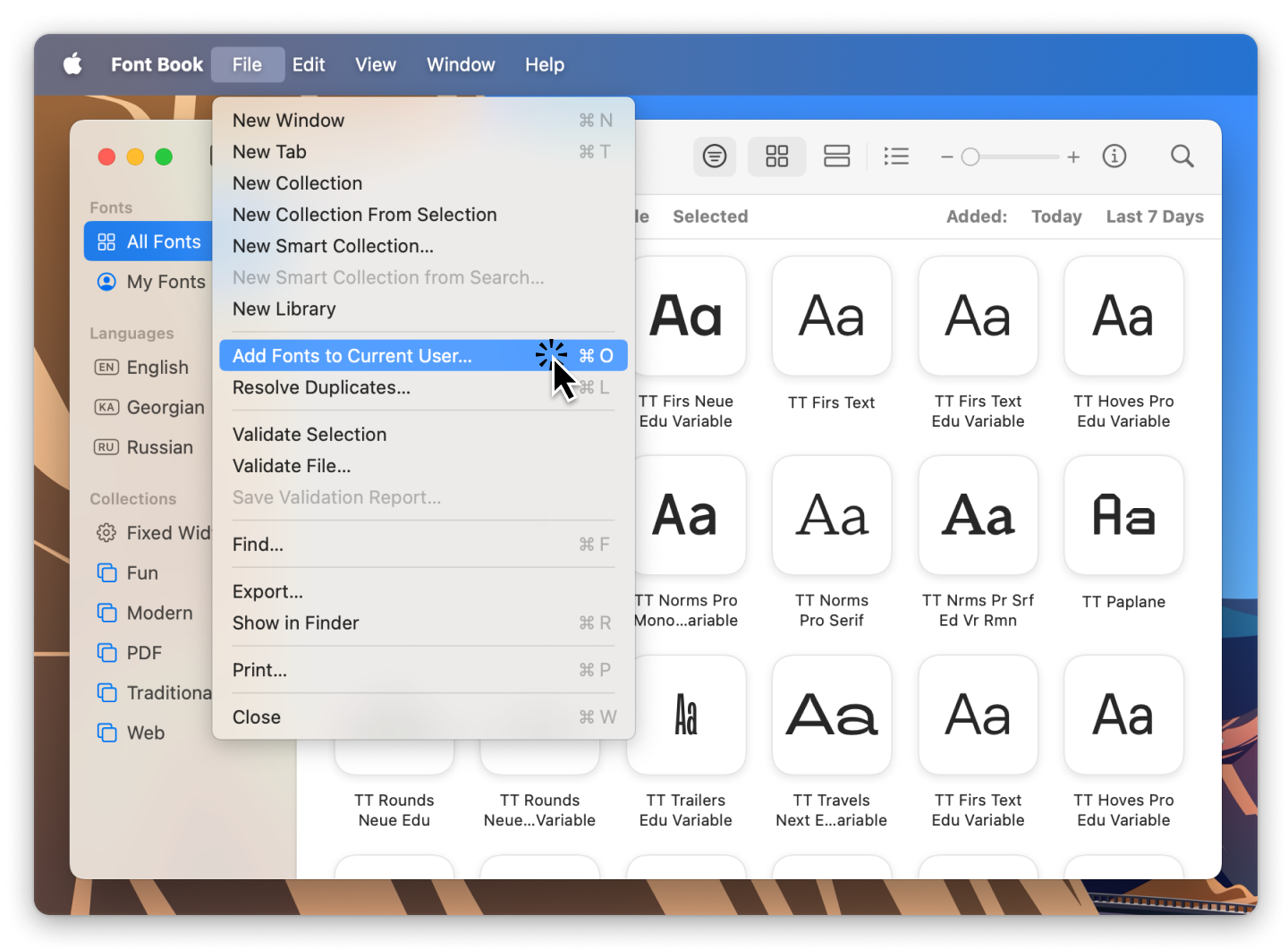
Alternatively, you can use the «Font Book» application on Mac to install fonts. Using this method to import fonts to your computer enhances security, with the app automatically verifying files for errors.

  1. Download the font file;
How to install a font on an iOS PC

2. If the files are archived, unpack them;

How to install a font on an iOS PC

3. You will see the downloaded font file in «Finder.» Double-click it and select «Install.»
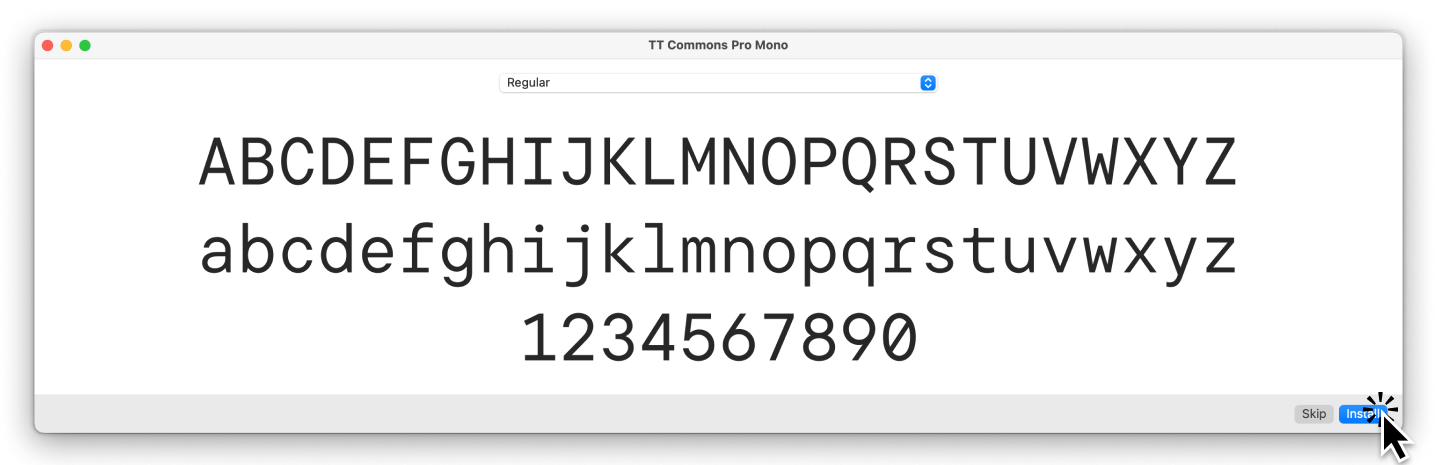
How to install a font on an iOS PC

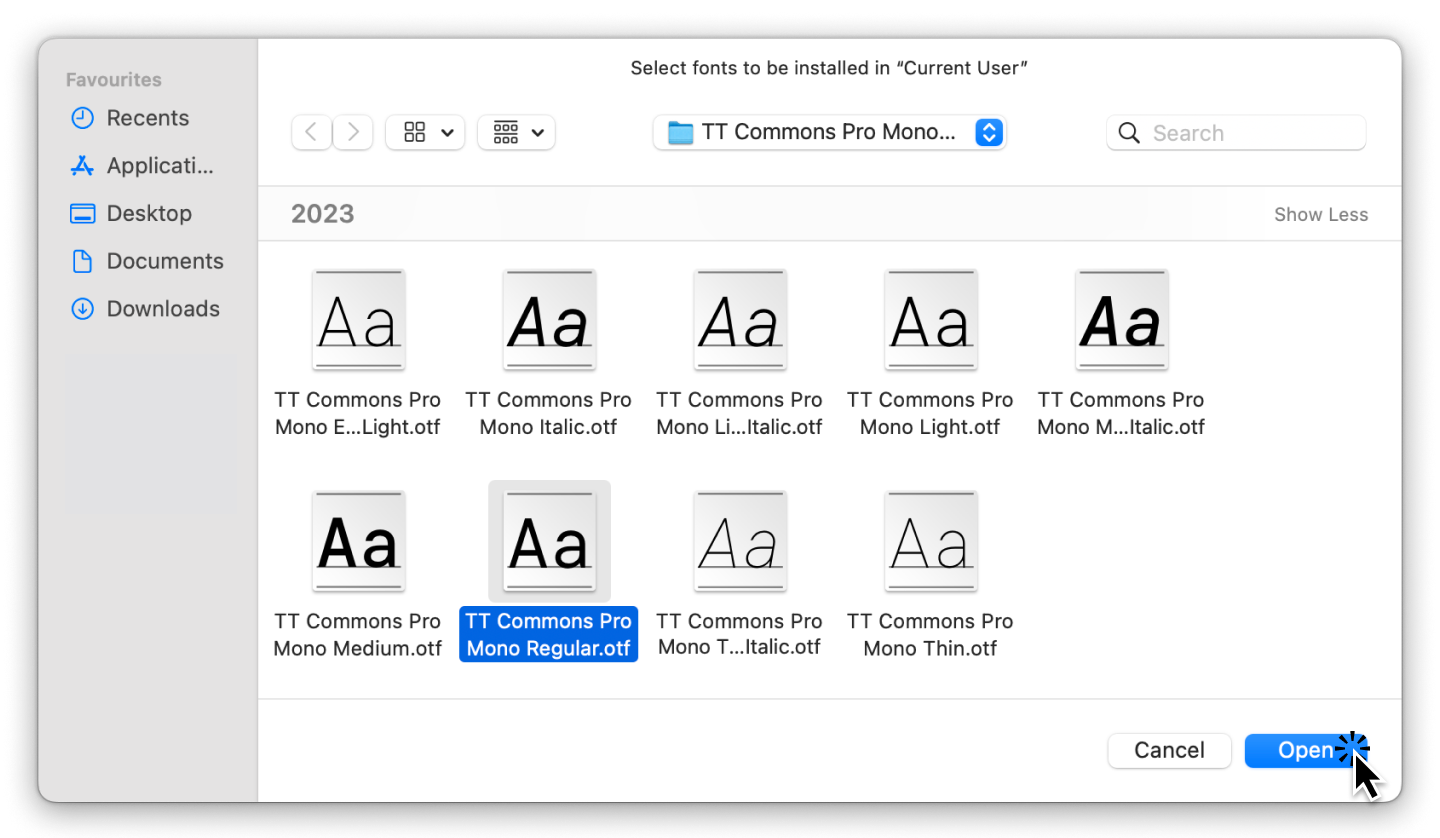
4. In the window that appears, double-click the desired font file.
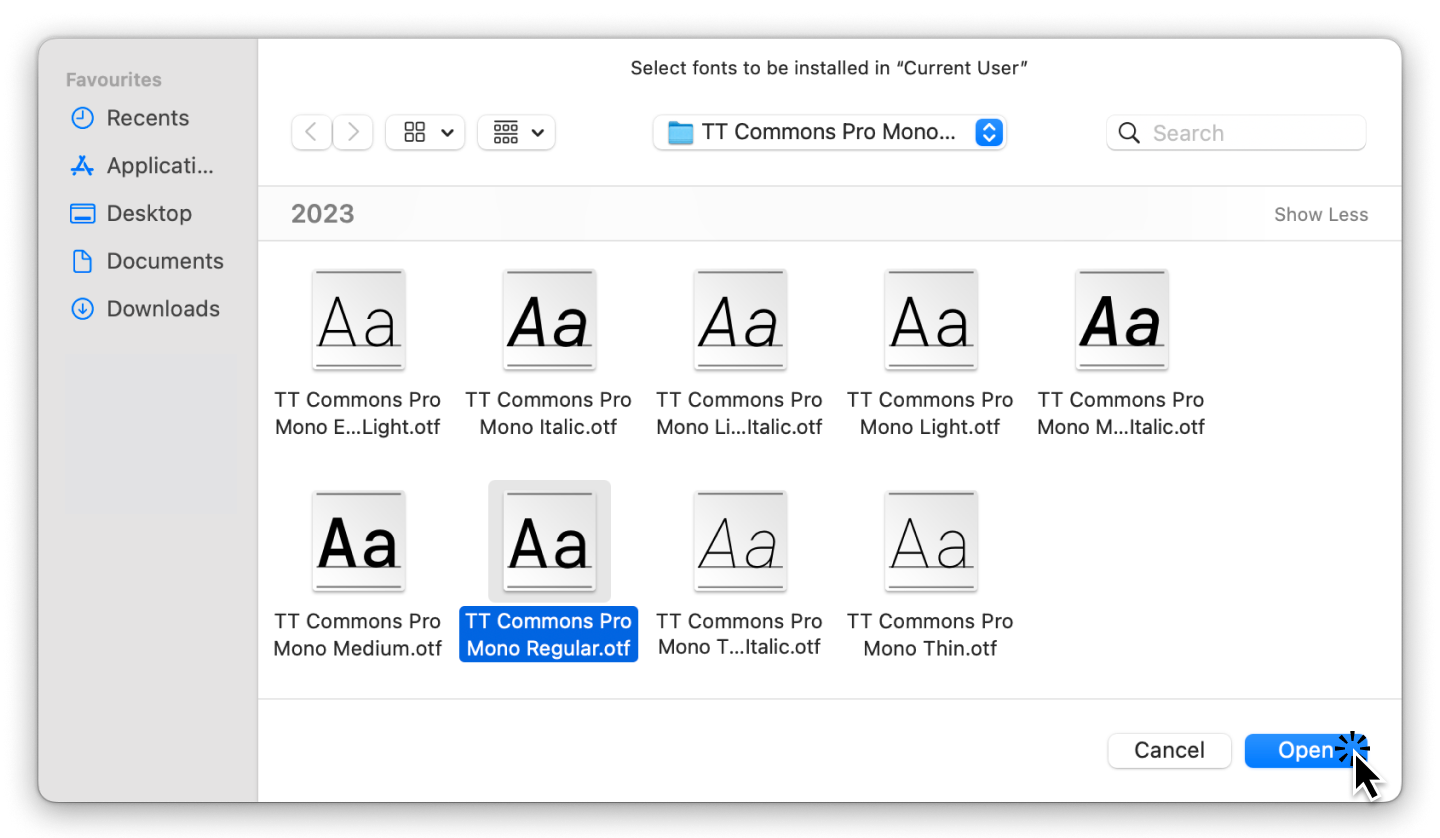
How to install a font on an iOS PC

Conclusion

It turns out that importing fonts is a very straightforward process. Try downloading a font right now: you can practice with the trial font versions from TypeType. To learn more about how to work with fonts and unleash their full potential, check out our article «Font’s Hidden Capabilities.»

Latest publications

What is a Font Family? Definition, Types, and Examples
Work with fonts

In this article, we will break down the font family definition, explore what types of font families exist, explain how a family differs from a font and a typeface, detail what is included in a font family, and guide you on how to make the best choice for a website, UI interface, and brand.

Typography in Figma: Variables, Tokens and Design Systems
Work with fonts

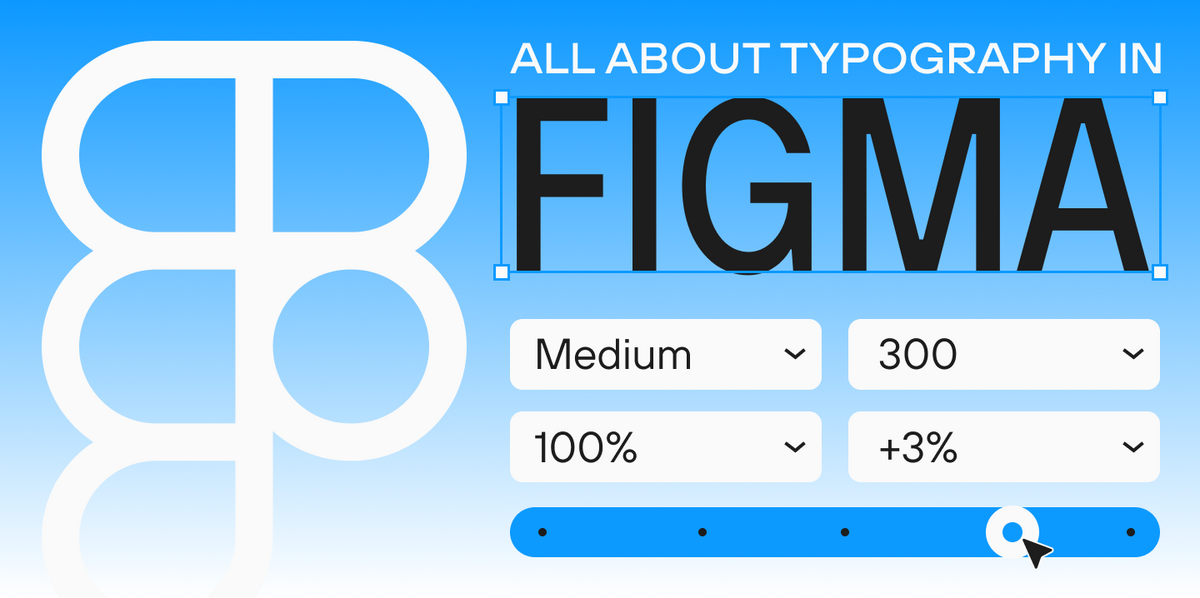
The larger the project, the more noticeable the price of chaos. On a simple landing page, you can manually fix a couple of headings. In an app with hundreds of screens, multiple platforms, different modes (like light/dark themes), and localizations, this approach quickly breaks down. One designer changes the size of a caption, another creates a local style, a third manually tweaks the line height—and within a month, the team no longer understands which values are actually systemic. A systematic approach to typography in Figma is crucial: it helps not only to craft an amazing layout but also to make the design solid and sustainable in real production. In this article, we explore the capabilities of working with typography in Figma, break down the core concepts, and provide practical examples.

Why Unique Fonts Matter Even in the Age of AI-Generated Design
Work with fonts

AI-generated fonts make design faster than ever — but speed doesn’t equal uniqueness. Discover why custom typography, bespoke typefaces, and strategic font design remain essential for brand identity, authenticity, and competitive advantage in the AI era.

IP Protection as an Art: TypeType’s Flexible Licensing Control Strategy
Work with fonts

Drawing on their own experience, the specialists at TypeType explain how type foundries and designers can stop unlicensed use of their products and get additional revenue while avoiding reputational risk. In TypeType’s professional experience the popularity of a typeface is linked to the fact that it will be more likely used without an appropriate license—despite the fact that developing a single family can take years of meticulous work. We covered how font licensing works in detail here.

Font Research: An Expert Approach to Brand Typography
Work with fonts

Among TypeType Studio’s services, we offer typeface system research. Why do brands need such research, and how does it help them develop? How is it conducted? What does the research include, and how are the results interpreted? We answer these questions and show how it works in practice using the financial segment as an example.

TypeType’s Year in Review: Looking Back at 2025
TypeType news

2025 was an incredibly productive year for TypeType: we released 7 new fonts, updated 14 typefaces, and added Arabic language support to two of our bestsellers. In addition, we won awards in type design competitions, explored new platforms, improved our website, wrote about type design in our blog, gave lectures, met with you at webinars, and created joint projects with friends and partners.

Typography in the Museum: How We Developed the Corporate Typeface for the Hermitage
Corporate fonts Font creation

The TypeType team, with the support of the Mantera Group, has created a new font family for the State Hermitage Museum—the Hermitage Type Family. The typeface will be used across all of the Hermitage’s digital content; you can already see it on the website and the updated launch page of the mobile version. And this is just the beginning of a major overhaul of the museum’s digital identity, in which the new font will play a pivotal role.

Proxima Nova Font: Alternatives, Pairings, and the Secrets of Its Popularity
TypeType fonts Work with fonts

Proxima Nova is one of the most recognizable sans-serif fonts in modern design. In this article, we’ll explore the history of the Proxima Nova font family, its graphic characteristics and composition, figure out what fonts go with Proxima Nova, what its best alternatives are, and what license you need to use it.

See more

Font Licensing: Complete Guide for Designers and Business Clients
Work with fonts

In this article, you will find out what types of font licensing exist, how to choose a suitable font license and use it, how to verify and buy a commercial font license, and how to avoid unpleasant typeface licensing issues whether you are a designer or a client.

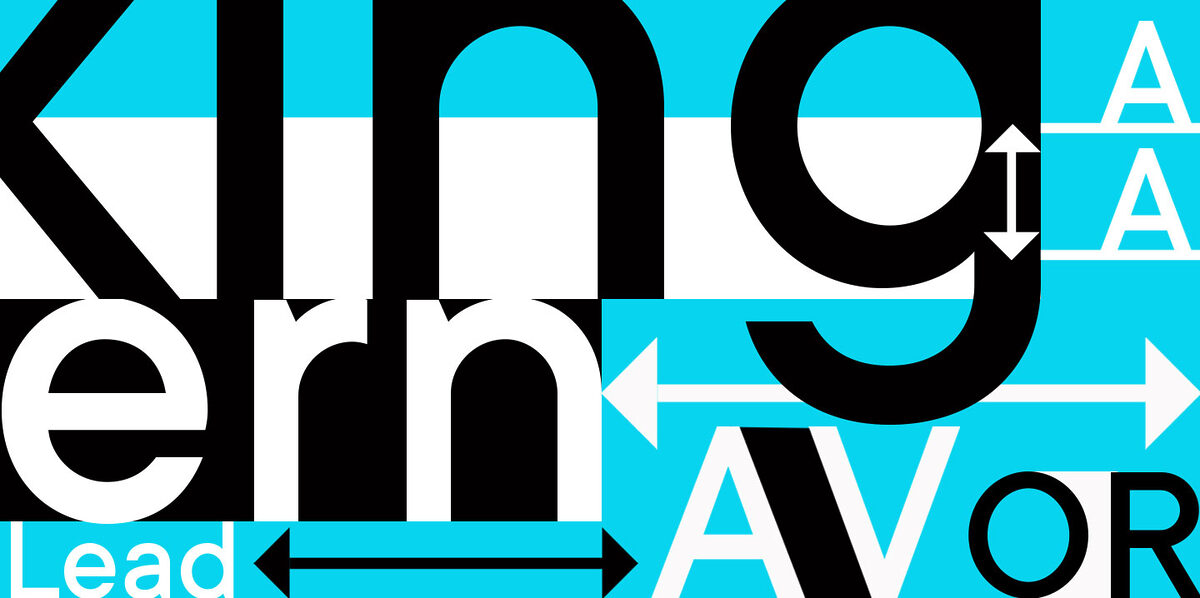
Kerning, Tracking, Leading & Spacing in Typography: What’s the Difference?
Work with fonts

Even seasoned designers sometimes mix up the concepts of kerning, tracking, spacing, and leading. Become a pro at distinguishing them! Learn the definitions of these concepts, explore their differences, and discover some helpful tips on how to use them while working on your fonts.

Branching out: How Scandinavian Sans TT Firs Grew and Found Its Font Pair
Font mastering TypeType fonts

In 2023, we breathed new life into the beloved Scandinavian sans serif TT Firs Neue by dramatically refining and renewing the typeface to comply with cutting-edge standards. Soon after, we introduced the text font pair for this typeface – an elegant TT Firs Text. This article is dedicated to how it all began, why we decided to update TT Firs Neue, what we added and modified, and how TT Firs Text was born.

Top 10 Typography Trends of 2025
Work with fonts

We live in a time when trends shift nearly every day, and typography design trends are no exception. We all encounter typography daily: on the web, in supermarkets, and on shop windows and signs. Outdated design, at the very least, induces boredom; at worst, it fosters distrust in the product or service. However, trendy design looks captivating and attractive.Experts and designers from the TypeType font studio are excited to share the key type trends of 2025 with you in this article. Stay trendy!

15+ Best Magazine Fonts for Perfect Editorial Designs
TypeType fonts Work with fonts

Magazines are a perfect backdrop for typography to express all its dimensions. Fonts, in this case, not only communicate information but also directly influence the design. They deliver the magazine’s message, reflecting its values and ideas. In this article, we discuss how to choose the best magazine font and compile a list of 15 relevant options for editorial designs on various themes.

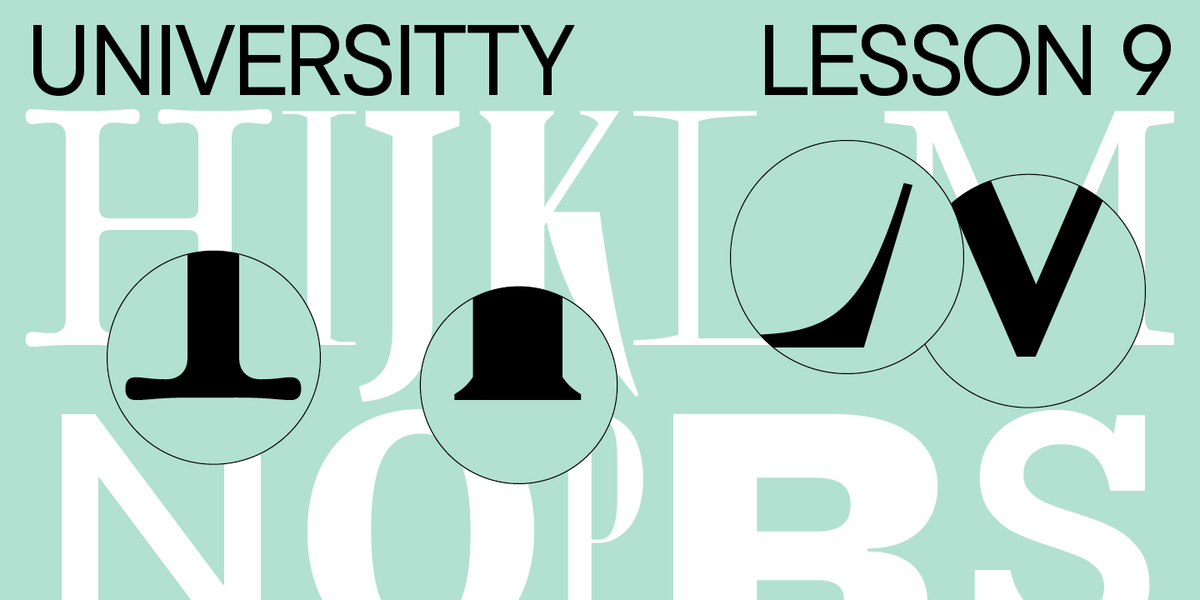
UniversiTTy: Lesson 9. Uppercase Characters. Detailed Contour Refinement
UniversiTTy

Welcome to the ninth lesson of our «UniversiTTy»! In this series, we guide you through the process of font design step by step. The font is a cohesive visual system. This can be seen on all levels: global (font type, weight, proportions, contrast, general forms) and at lower scales that encompass all graphic choices in individual characters. Let’s find out together how visual details influence the overall perception of fonts.

15 Best Outline Fonts Approved by Designers in 2026
TypeType fonts Work with fonts

Outline fonts are an excellent tool for adding variety to a design, making it attractive and bold. What do they look like? Where are they used? What font styles do they match?
We covered all these questions in this article and made a selection of the best outline fonts for different projects.

10 Best Fonts for Poster Designs
TypeType fonts Work with fonts

Poster design is a vast creative playground for working with typography. How do you choose poster fonts correctly without compromising your idea? What kinds of different fonts for posters exist, and how can you find yours? Learn in this article!

UniversiTTy: Lesson 8. Designing Basic Latin Characters. Uppercase characters
UniversiTTy Work with fonts

Welcome to lesson number 8 of our “UniversiTTy” series! Last time, we covered optical compensation, uppercase and lowercase character heights, and the concept of contrast. In this article, we will finally focus on glyph design specifically.